Early access 0.9.0 · free for macOS
Your Mac, one click away.
QuickDock is a lightweight floating launcher for the apps, files, folders, websites and actions you use most. Press ⌥ Space anywhere, click, and get back to work.
macOS 13 Ventura or later · Apple Silicon (arm64) · 2.7 MB · Unsigned early-access build
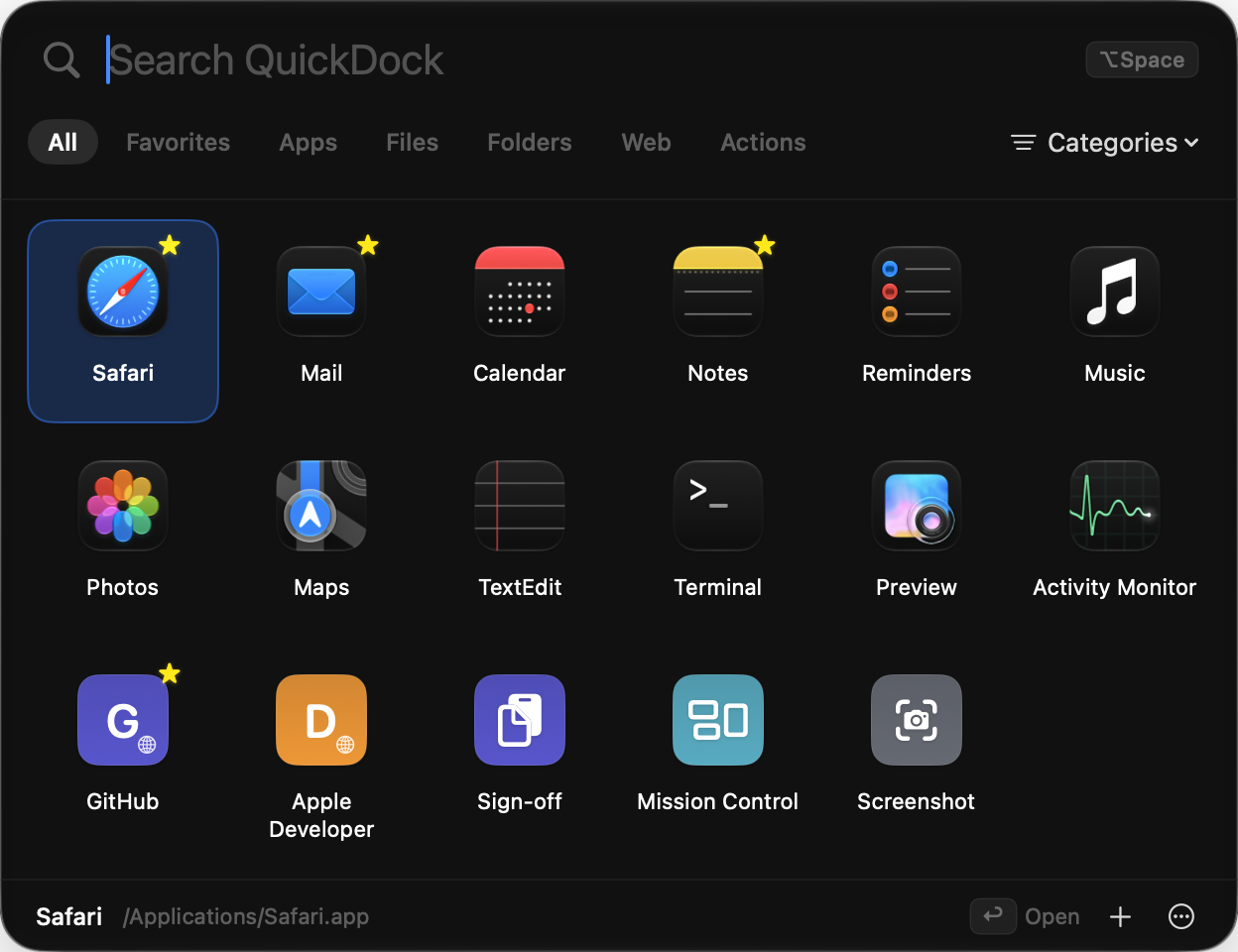
Everything you reach for, in one place.
QuickDock isn’t a search engine for your whole Mac. It’s a personal collection of the things you open every day — and it stays out of your way until you need it.
One-click access
Open a floating launcher from anywhere and start what you need with a single click or the Return key.
Apps, files and folders
Pin the applications, documents and folders you reach for every day — with their real macOS icons.
Websites and shortcuts
Add websites, copy saved text snippets, start a new email, or jump to Mission Control and System Settings.
Global keyboard shortcut
Press ⌥ Space (or any shortcut you choose) in any app. No Accessibility permission needed.
Personal organization
Instant search, filters for apps, files, folders, web and actions, favorites, categories and drag-and-drop order.
Quick Wheel
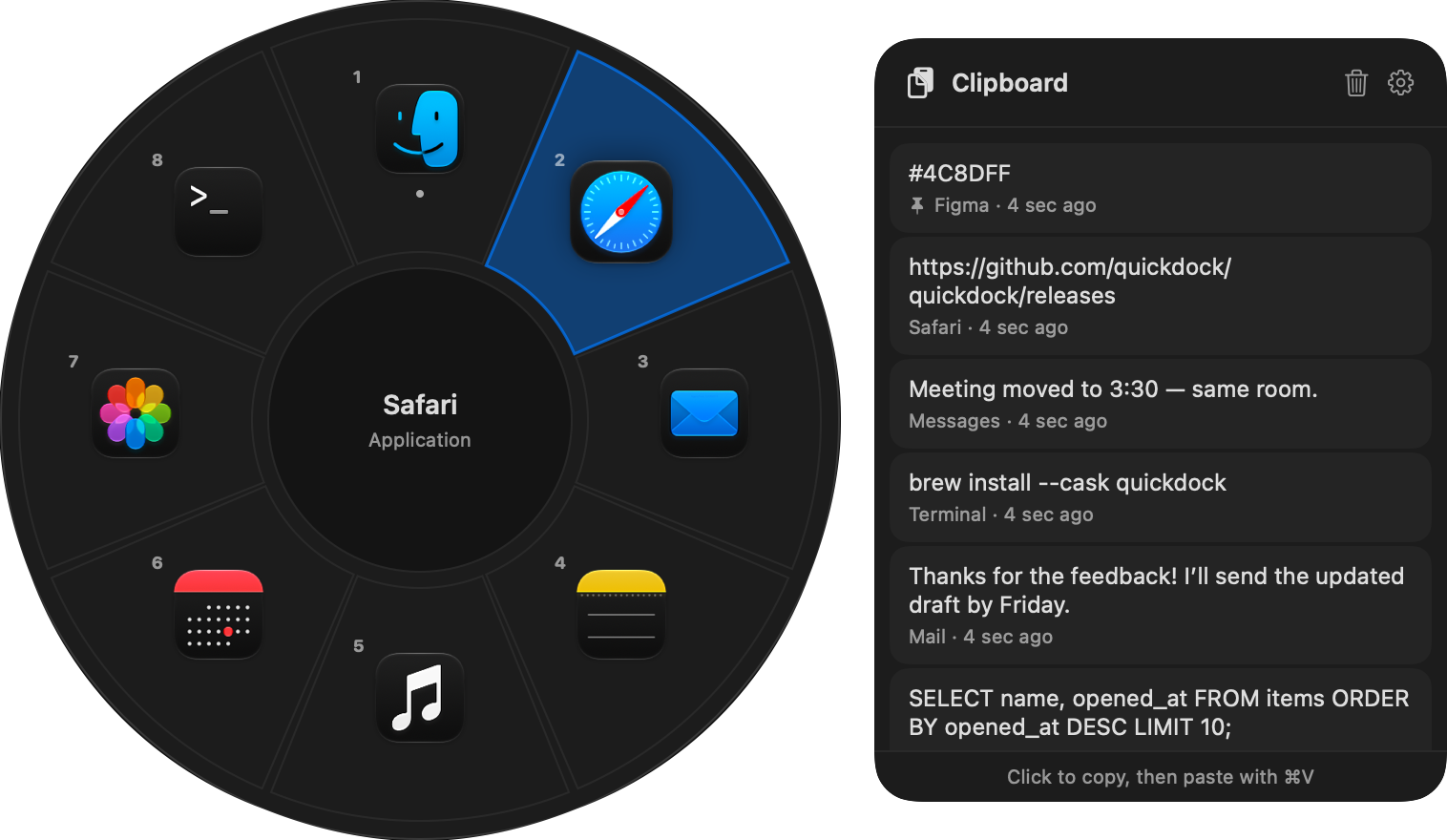
Hold ⌥Tab, flick towards an app and let go — open it or switch to it in a split second, like a game’s weapon wheel.
Clipboard history
Opt in to keep recent copied text beside the wheel. Click to copy it again; pin what you reuse. Password-manager copies are never saved.
Offline and private by design
No account, no cloud, no analytics, no ads. QuickDock runs in the App Sandbox without network access.
New in 0.9.0
The Quick Wheel
Your favourite apps in a ring around the pointer. It’s the fastest way to jump between the apps you live in.
- ⌥TabHold, flick, release. Point towards an app and let go to open it — or switch to it if it’s already running.
- ●Favorites first, then your most-used apps, with a dot on apps that are running.
- ●Tap to click instead, press Tab again to step through slots, or press 1–9.
- ●Clipboard on the side (optional): recent copied text, one click to copy again.
See it in action
Real screenshots of QuickDock 0.9.0, captured from the running app. Select one to view it full size.
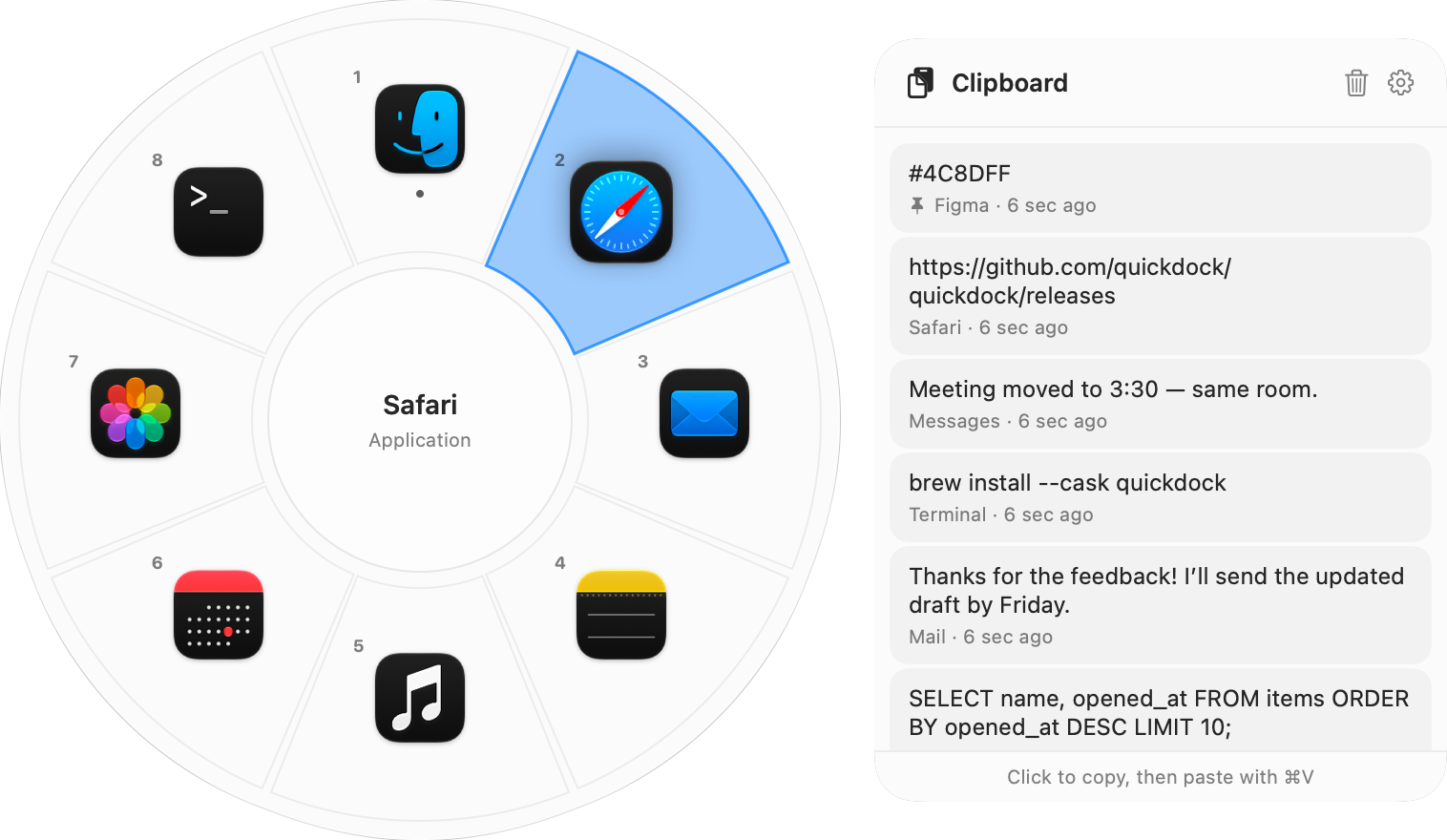
Quick Wheel in Light Mode 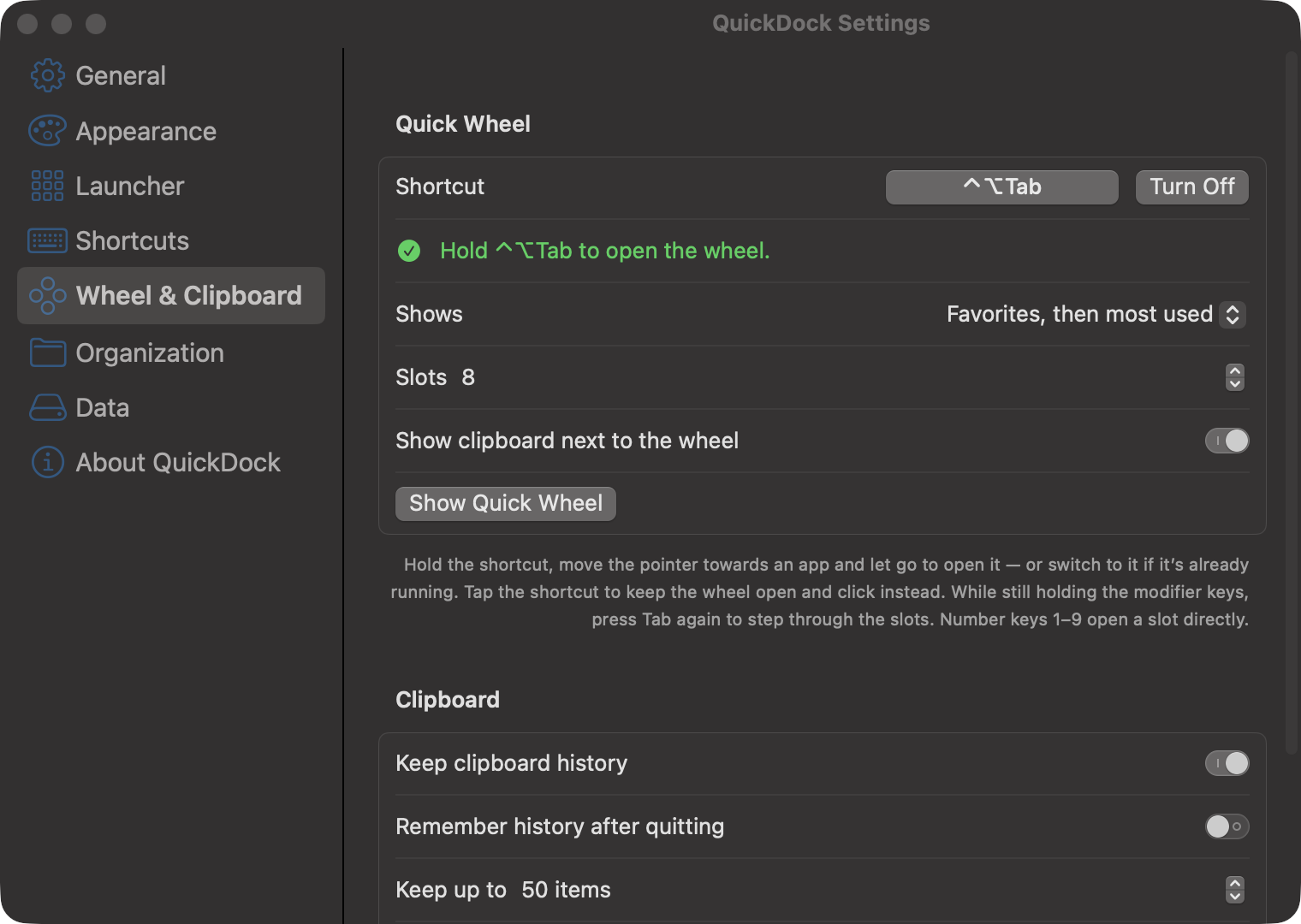
Wheel & clipboard settings 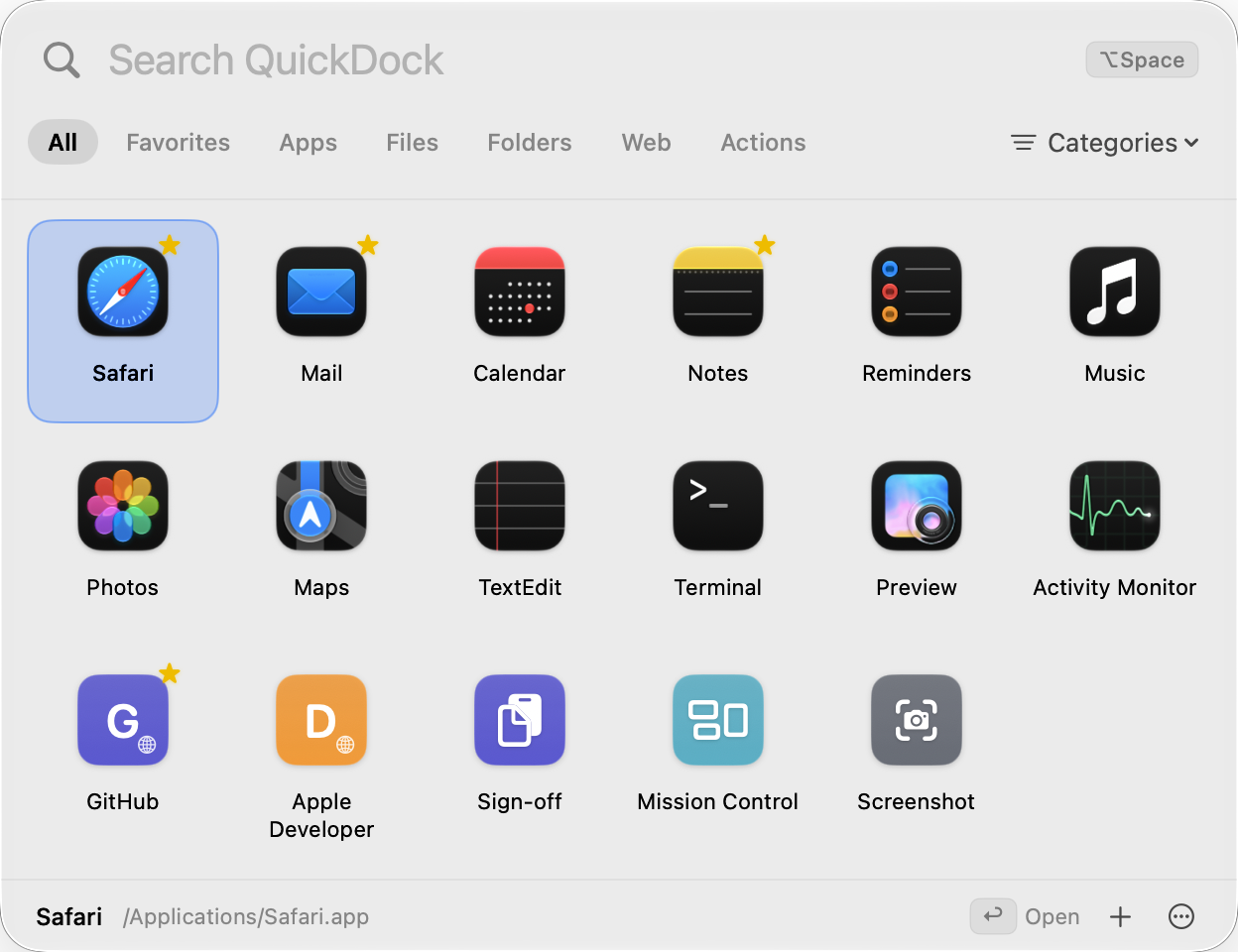
Light Mode 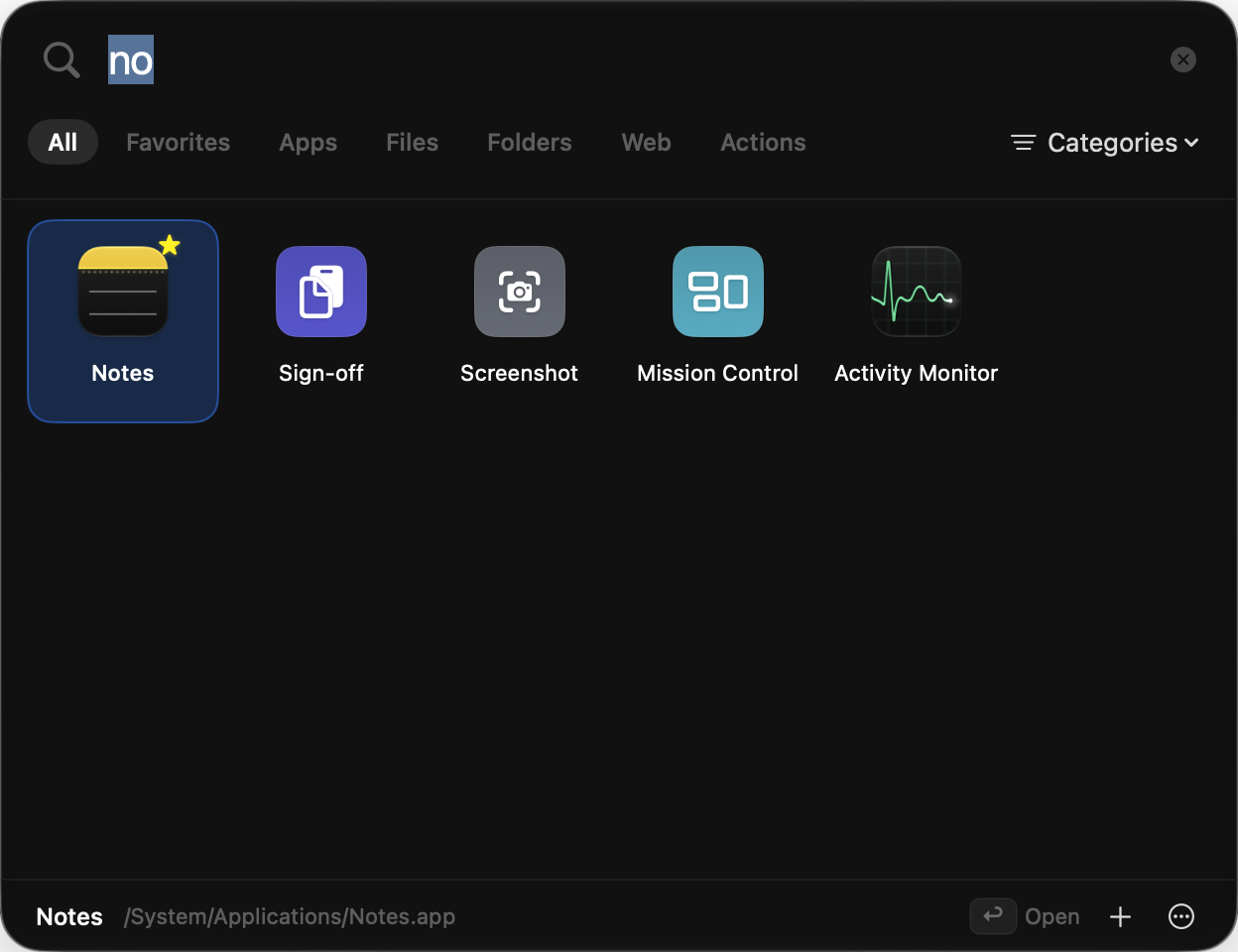
Instant search 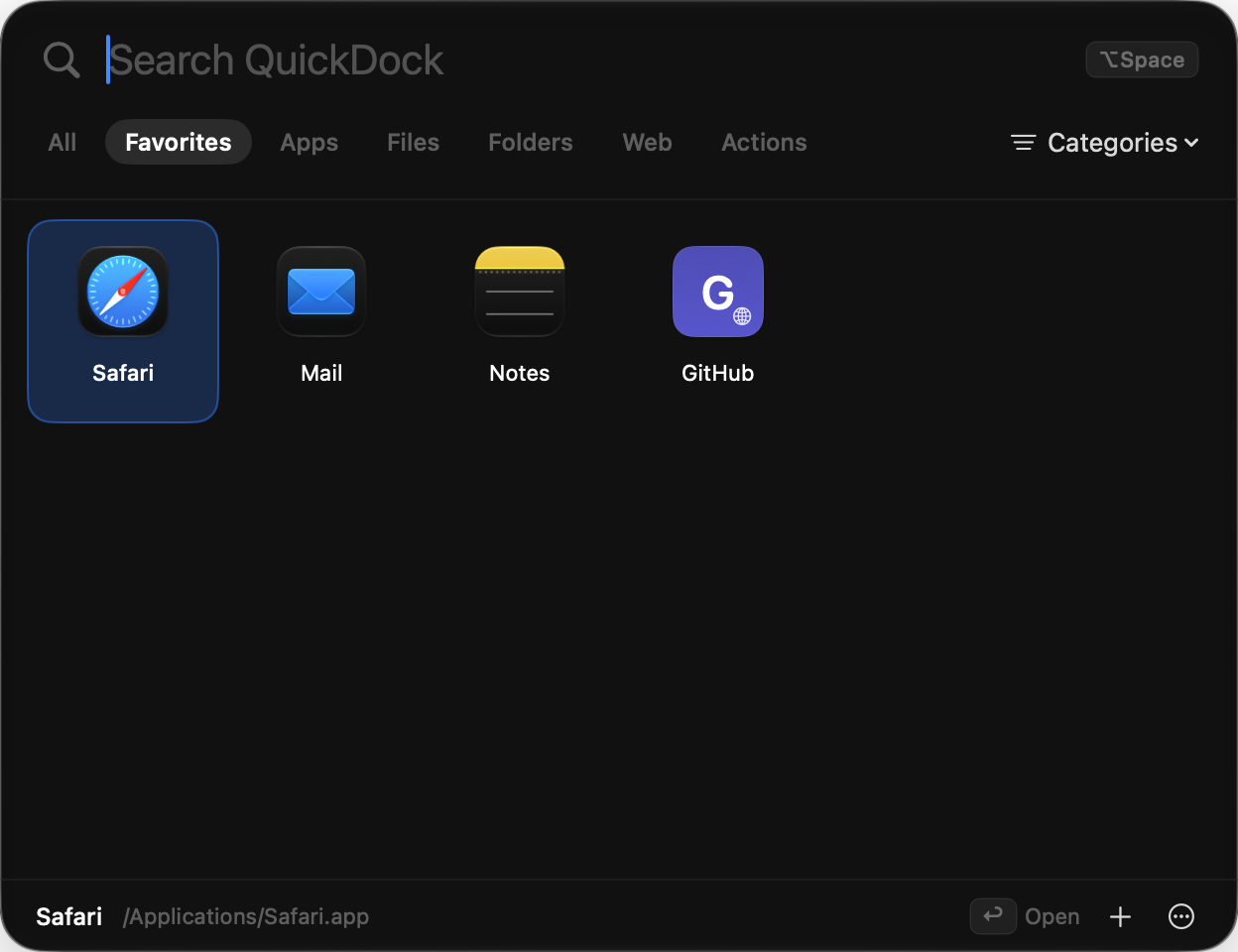
Favorites 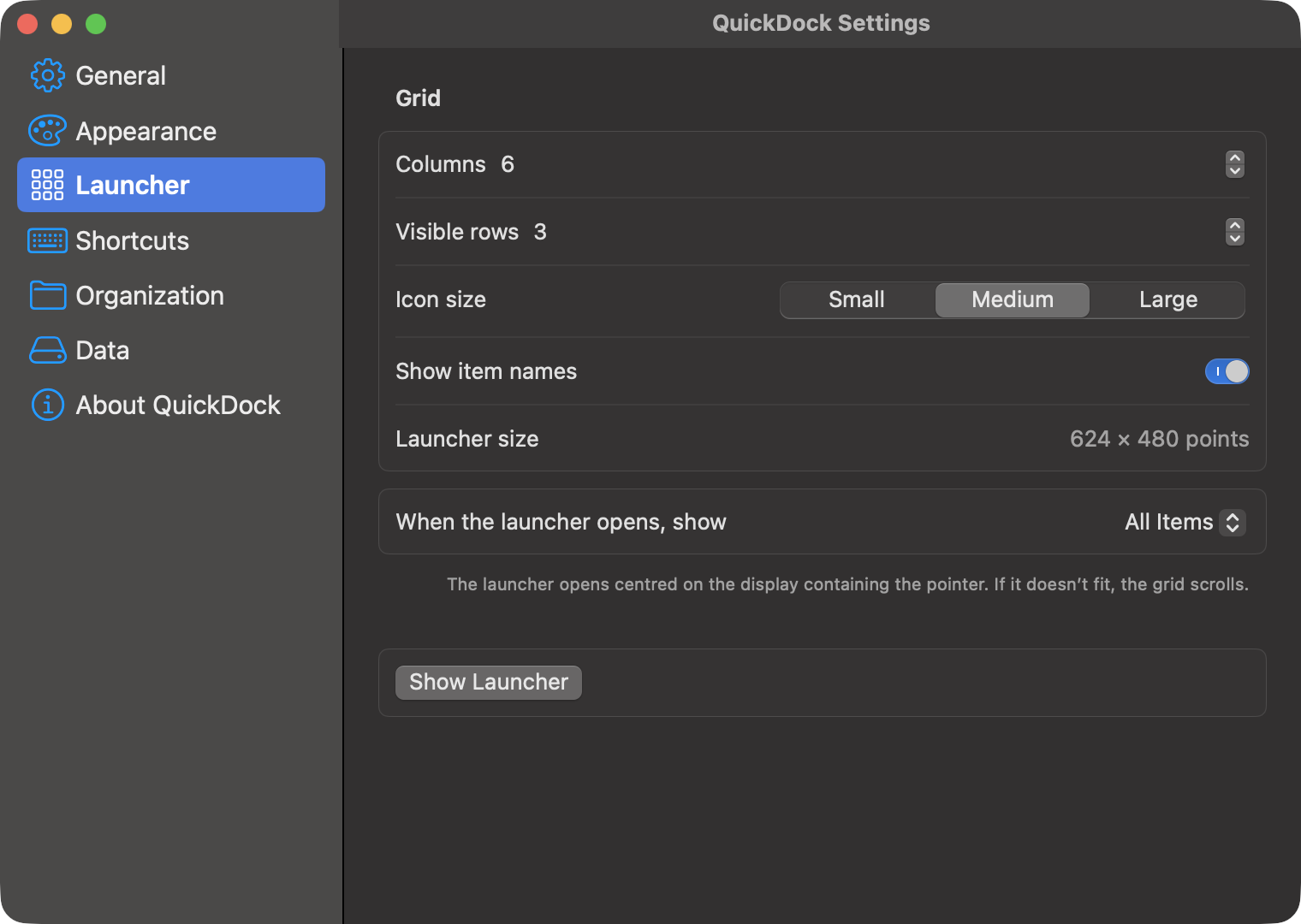
Customize the grid 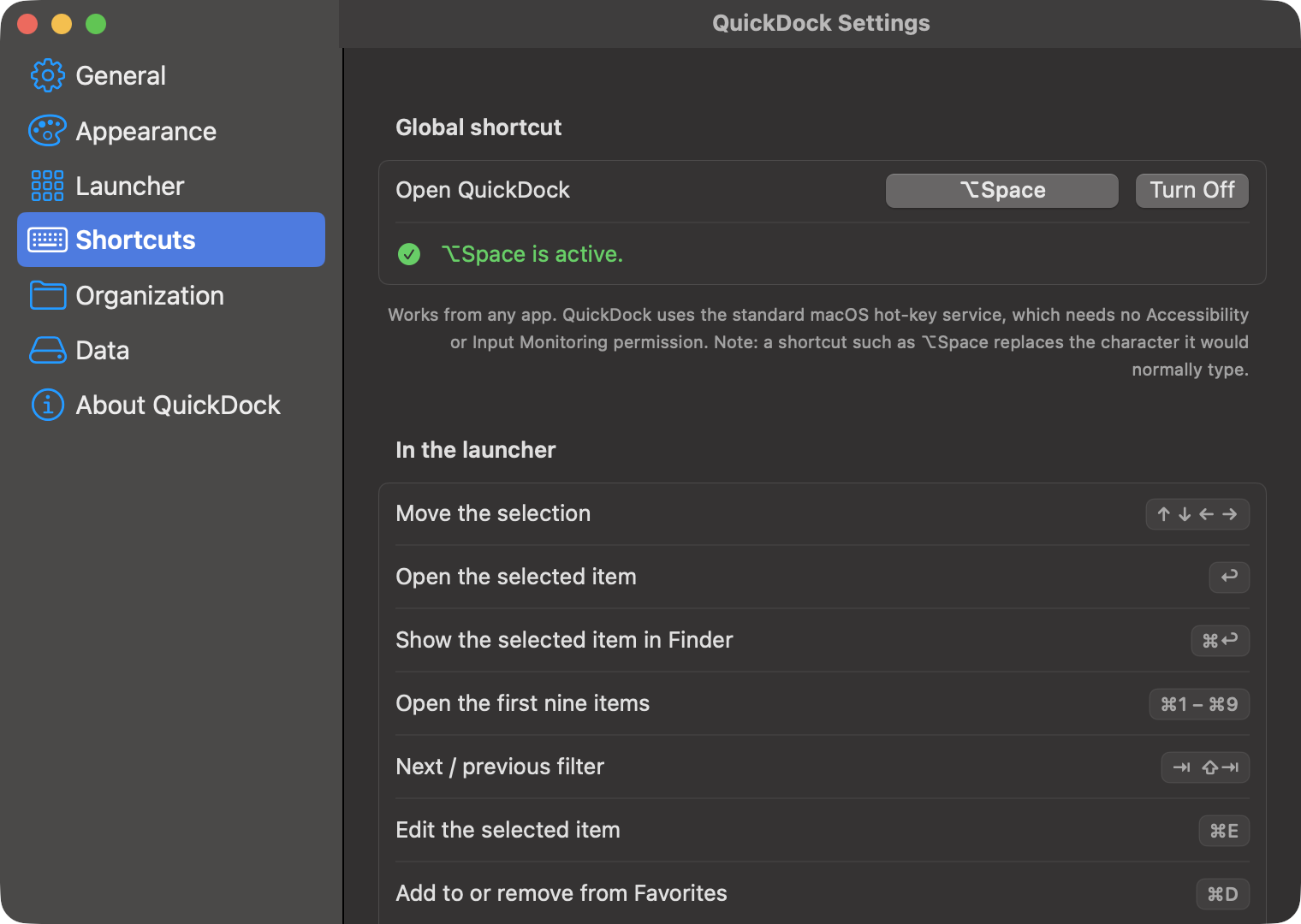
Your own global shortcut 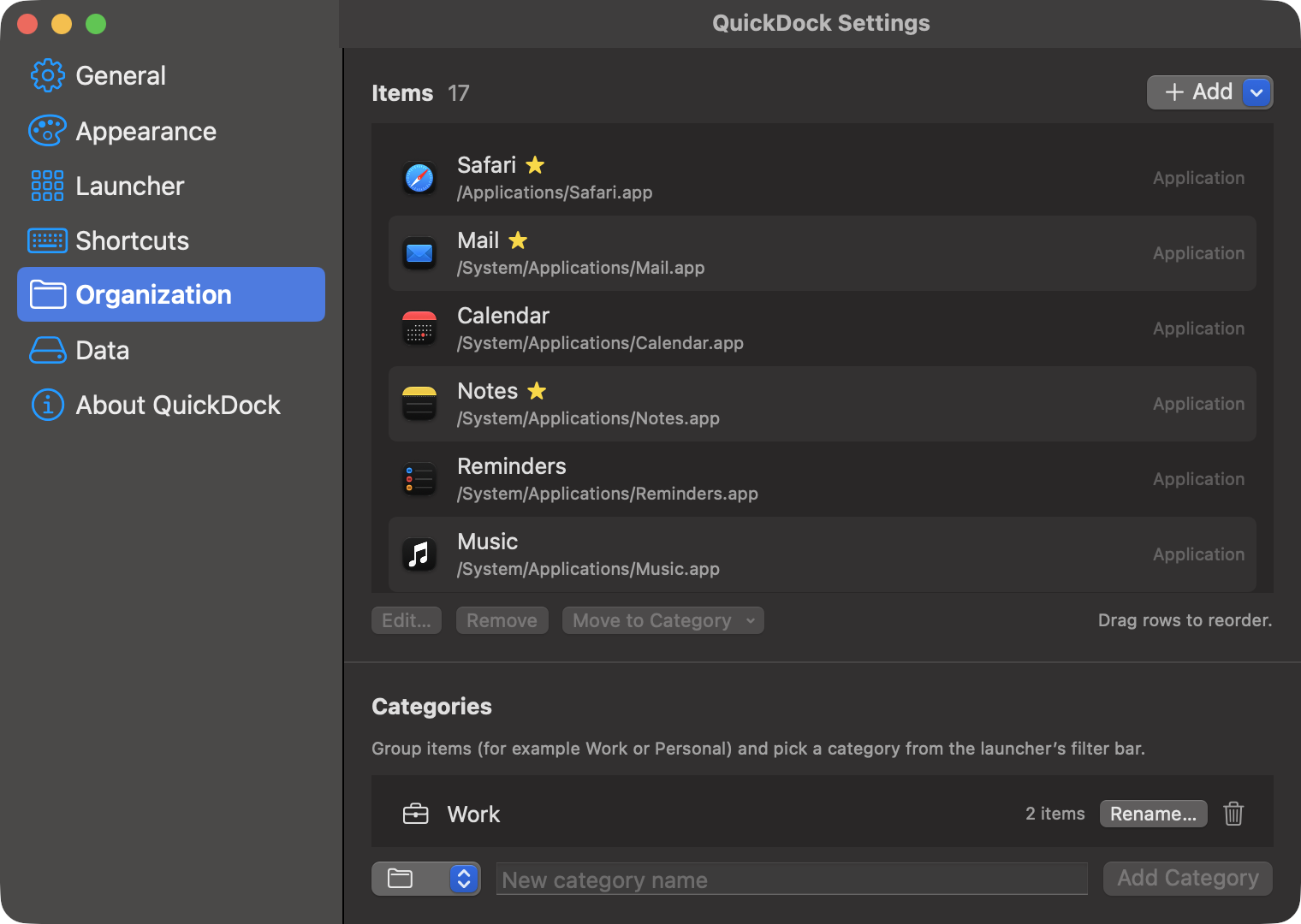
Organize items and categories 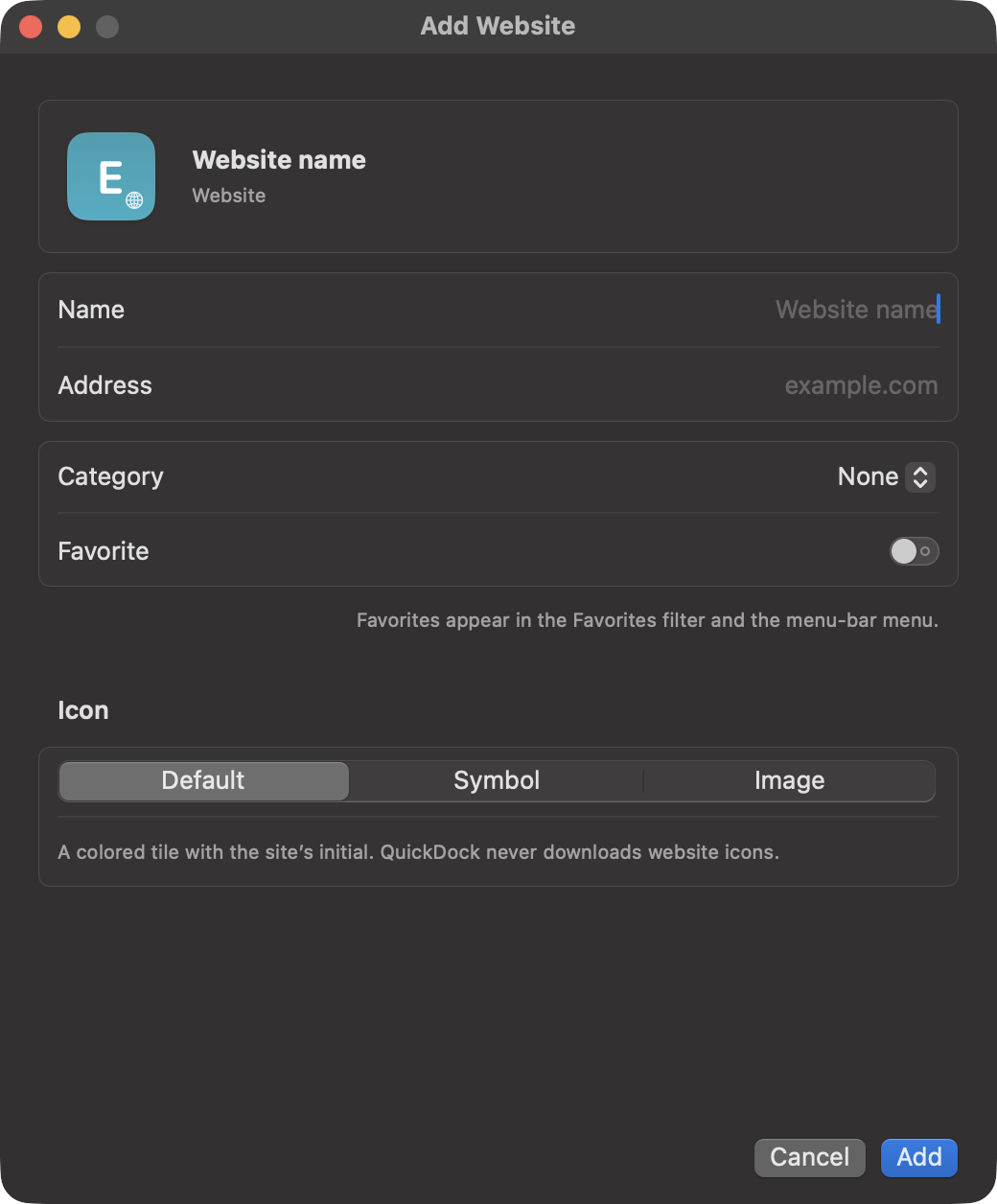
Add websites and actions 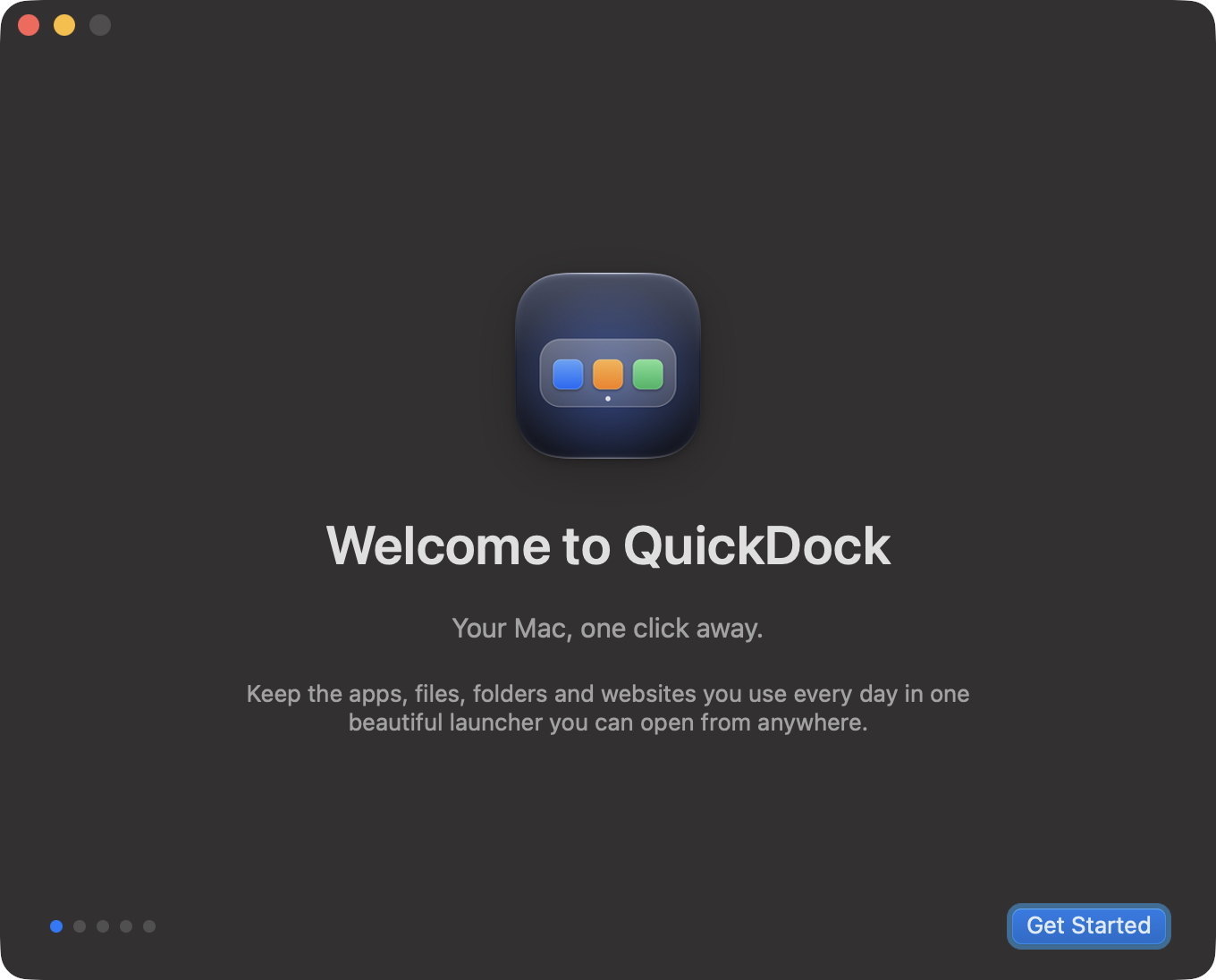
A friendly first launch 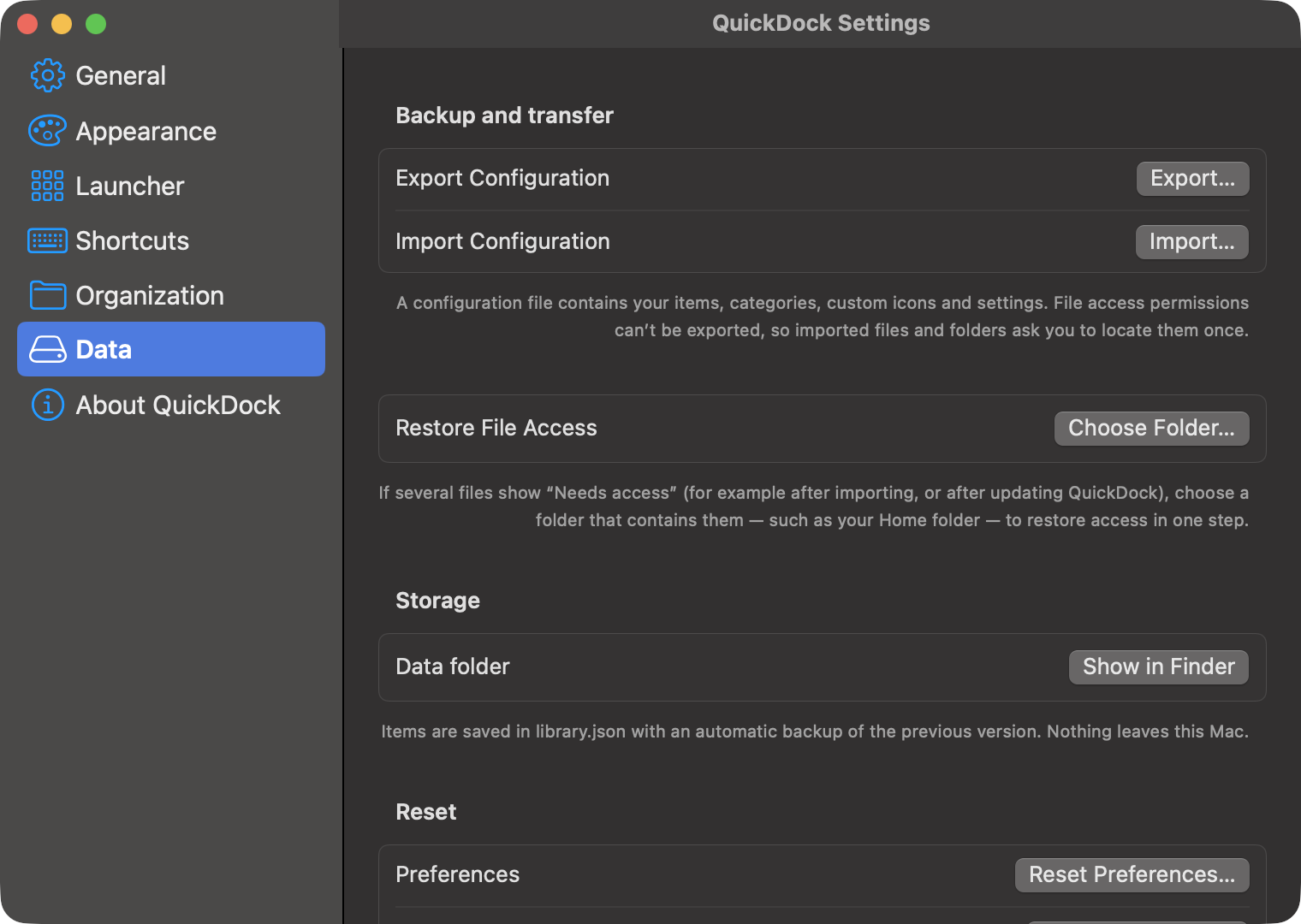
Export, import and reset
Installation
- 1
Download
Download QuickDock-0.9.0-arm64.dmg from the official GitHub Releases page.
- 2
Open the DMG
Double-click the downloaded file to open the QuickDock disk image.
- 3
Move to Applications
Drag QuickDock onto the Applications folder shortcut, then eject the disk image.
- 4
Open QuickDock
Open it from Applications. The first time, follow the security steps below.
First launch on macOS 15 Sequoia and later
- Open QuickDock. macOS says it can’t verify that the app is free of malware. Click Done (don’t move it to the Trash).
- Open System Settings › Privacy & Security.
- Scroll to Security. Next to the message about QuickDock, click Open Anyway.
- Enter your password, then click Open Anyway again in the final dialog.
The “Open Anyway” button appears for about an hour after you first tried to open the app. If it’s missing, open QuickDock again and come back.
First launch on macOS 13 Ventura and 14 Sonoma
- In Finder, open Applications.
- Control-click (or right-click) QuickDock and choose Open.
- Click Open in the dialog that appears.
The Privacy & Security › Open Anyway method above also works on these versions.
After this, QuickDock opens normally. Look for its icon in the menu bar and press ⌥ Space.
Verify your download (recommended)
Compare the file’s SHA-256 checksum with the one published on the release page. In Terminal:
shasum -a 256 ~/Downloads/QuickDock-0.9.0-arm64.dmgExpected for 0.9.0: 93eba69c76c1eb5130e9eb94d7176a7f5fe6915799db3fe7214ecfbaef634d33
Troubleshooting
“QuickDock is damaged and can’t be opened”›
This usually means the download was incomplete or altered. Delete it, download it again from the official GitHub Releases page, and check the SHA-256 checksum. Don’t run commands from the internet that promise to “fix” this.
There’s no “Open Anyway” button›
It only appears after you’ve tried to open QuickDock, and only for a while. Open QuickDock from Applications once, then go straight to System Settings › Privacy & Security.
I can’t find QuickDock after opening it›
QuickDock lives in the menu bar, not the Dock. Look for its icon near the clock, or press ⌥ Space. On a crowded menu bar, icons can be hidden behind the notch — quit an app or two, or use the shortcut.
The shortcut doesn’t work›
Another app may already use it. Open QuickDock’s Settings › Shortcuts — it shows whether the shortcut is active — and record a different one, such as ⌃⌥Space or ⌘⇧Space.
An item shows a warning badge›
The file moved, was deleted, or its disk isn’t connected — or an app was uninstalled. Click it and choose Locate… to point QuickDock at its new location, or Remove.
“Open at login” asks for approval›
macOS needs you to allow QuickDock in System Settings › General › Login Items. QuickDock shows a button that takes you there.
Uninstall
- Quit QuickDock: right-click its menu-bar icon and choose Quit QuickDock.
- If you turned on Open QuickDock at login, turn it off in QuickDock’s Settings first (or remove it later in System Settings › General › Login Items).
- Drag QuickDock from Applications to the Trash.
- Optional — remove your items and settings: in Finder choose Go › Go to Folder…, enter
~/Library/Containers/and move theio.github.sonal-jaiswal.QuickDockfolder to the Trash.
QuickDock doesn’t install helpers, kernel extensions or background services, so that’s everything.
Download QuickDock
- Latest version
- 0.9.0 (early access)
- Released
- November 9, 2026
- Requires
- macOS 13 Ventura or later
- Compatibility
- Apple Silicon (arm64)
- File size
- 2.7 MB (DMG)
- Signing
- Unsigned · not notarized
What’s in 0.9.0
- Quick Wheel: hold ⌥Tab and a ring of your favorite and most-used apps appears around the pointer. Flick and release to open or switch, tap to click, press Tab again to cycle, or press 1–9.
- Optional clipboard history beside the wheel. It's text only, stays on your Mac, skips password-manager copies, supports pinning, and saves to disk only if you choose.
- Floating launcher panel with Liquid Glass on macOS 26 and later, centred on the display with the pointer.
- Menu-bar icon: click to open the launcher, right-click for favorites, adding items, Settings and Quit.
- Global keyboard shortcut (default ⌥Space) with conflict detection, automatic fallback and a shortcut recorder.
- Apps, files, folders, websites and built-in actions: copy a text snippet, new email, Mission Control, Screenshot, Screen Saver, System Settings.
- Instant search, type filters, favorites, categories, custom names and custom icons (SF Symbols or images).
- Drag-and-drop reordering, plus adding by dropping files and links onto the launcher or the app icon.
- Keyboard navigation: arrow keys, Return, ⌘Return, ⌘1–⌘9, Tab, ⌘E, ⌘D and Escape.
- Clear states for missing files and uninstalled apps, with Locate… and Remove.
- Settings: General, Appearance, Launcher, Shortcuts, Organization, Data and About.
- Configuration export and import (merge or replace) with validation, plus Restore File Access.
- Optional Open at Login.
- First-launch onboarding.
- App Sandbox with no network access. Security-scoped bookmarks keep access to the files you choose.
Help us bring QuickDock to more Mac users.
QuickDock is built independently, without subscriptions, advertisements, or paid APIs. We are currently self-funding development and working towards Apple Developer Program membership so we can sign and notarize future releases.
Your voluntary contribution helps cover:
- •Apple’s $99/year Developer Program membership.
- •Code signing and notarization-related release work.
- •Testing and compatibility improvements.
- •Future maintenance and development.
First-year goal
$99 USD
One year of Apple Developer Program membership.
Progress will be shown here once it can be confirmed from the donation provider’s records.
Donations are voluntary and very much appreciated. They are not a purchase: they don’t buy a subscription, a license, support commitments or any guaranteed feature, and QuickDock stays free either way.
Private by design
QuickDock is sandboxed by macOS and has no permission to use the network. It can only open files and folders you choose.
No account
There’s nothing to sign up for.
No cloud sync
Your items stay in a file on your Mac.
No advertising
Never. QuickDock is ad-free.
No telemetry
No analytics, crash reporting or tracking of any kind.
Local storage
Items and settings live in QuickDock’s own sandbox container.
No paid APIs
Everything works offline, with no services behind it.
Frequently asked questions
Is QuickDock free?›
Yes. QuickDock is free, open source under the MIT License, and has no subscriptions, in-app purchases or ads. Donations are entirely optional.
Does it work offline?›
Yes, completely. QuickDock has no network access at all — the app is sandboxed without the network entitlement. Websites you add open in your own browser.
Which Macs are supported?›
Macs with Apple silicon (M-series) running macOS 13 Ventura or later. Intel Macs aren’t supported by the current build; a universal build may follow later.
Is it signed and notarized?›
Not yet. QuickDock doesn’t have an Apple Developer ID yet, so current builds are not signed with a Developer ID certificate and are not notarized by Apple. They are not Apple-verified. Joining the Apple Developer Program ($99/year) is what donations are funding.
Why does macOS show a warning?›
Gatekeeper warns about apps that aren’t notarized by Apple. That’s expected for this early build. You can allow QuickDock once in System Settings › Privacy & Security › Open Anyway (see Installation). Only do this for a copy downloaded from the official GitHub Releases page, and check its SHA-256 checksum.
How can I donate?›
Use the button in the Support section. Donations are voluntary, go towards Apple Developer Program membership and ongoing work, and don’t buy a subscription or guarantee any feature.
How do I uninstall it?›
Quit QuickDock from its menu-bar icon (right-click › Quit), drag QuickDock from Applications to the Trash, and optionally delete its data folder. Full steps are in the Uninstall section.
Can clipboard history see my passwords?›
Clipboard history is off until you turn it on. QuickDock keeps only text, only on your Mac, and skips copies that password managers mark as private. macOS may ask once whether QuickDock can read the clipboard, and you can change that answer in System Settings. History is cleared when you quit unless you choose to remember it.
Does QuickDock need special permissions?›
No. It doesn’t ask for Accessibility, Full Disk Access, Screen Recording or Automation. It can only open files and folders you choose yourself.
Something else? Open an issue on GitHub.